How does guilua work?
I thought I would write a little about what guilua is, and how you can use it to make a window you can control with lua.
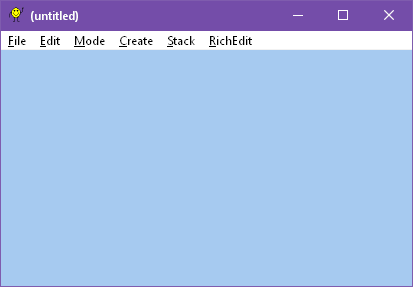
First thing, start guilua and you have a blank window with a menu.
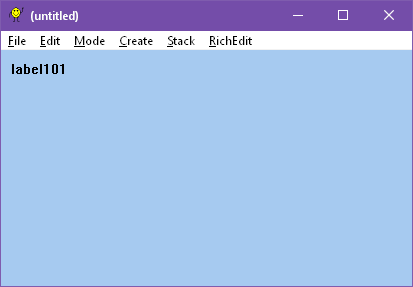
Let's create some new controls with the menu. Go to Create, then Label.
A label called label101 appears in the window.
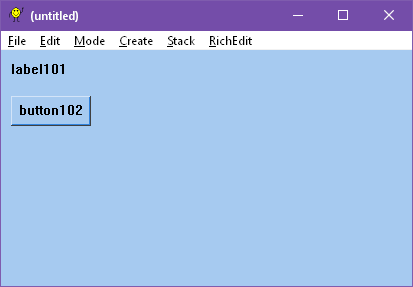
Go to Create then Button.
A button called button102 appears under label101.
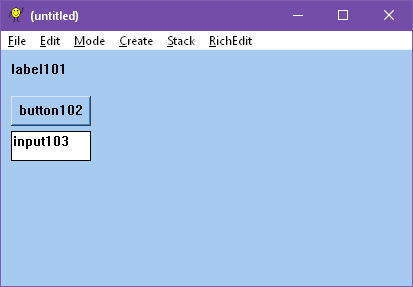
Now, let's go to Create then Input.
An input box called input103 appears under the button.
So far so good. But what can you do with these?
So far you can edit the text that is in input103, or press button102.
Nothing too special happens when you do that, though.
You can save this by going to File and Save, or open up an arrangement you made with File then Open.
You can go into Edit Mode to put code in these controls. Go to Mode and then Edit Mode.
The controls are all disabled.
Now you can move them around by dragging, or edit their properties by right clicking or double clicking them.
Let's right click Button102.
It shows the Properties window, and there are some small fields for the coordinates, and a flags button, some buttons for font, color and background, and a large script edit field. The Delete and Apply buttons are on the bottom.
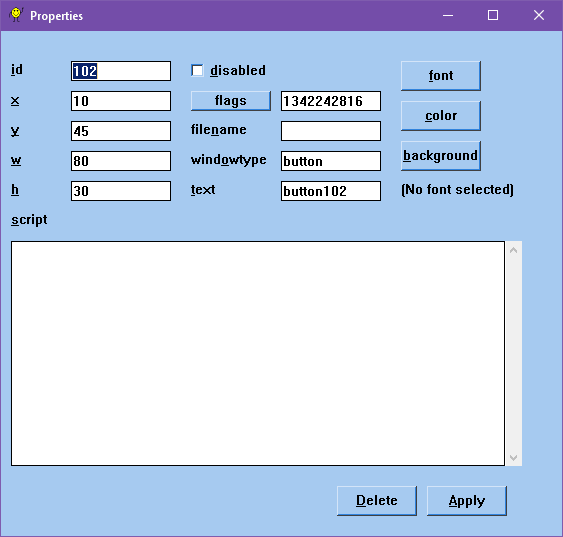
The id field is important, the id is 102. This id is what you can use the change the text that displays or other things in the code having to do with that control.
Put in some lua code in the script window.
Here's the code to put in:
set_text(101, "I pushed it.")
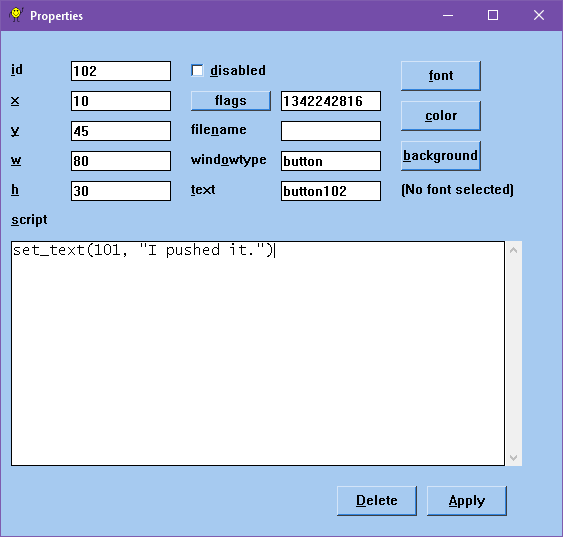
Now push the Apply button.
Go back to Run Mode by going to Mode and then Run Mode.
Now push the button.
It changed the text in the label101 label to I pushed it.
So the text can be altered with the id number and a string, using the set_text function.
Each of the controls can have a script, but there is also another script that automatically runs when the guilua file is opened.
That is in Mode and then Edit Autostart variable.
This edit box is where you can set up lua functions or variables, or some of the call back functions can be set up like size_callback.
size_callback is a table of functions that maps the hWin values to functions that run when that window changes.
hWin is a global variable that has the window id.
If you go to File and then Lua Script... and in the field enter hWin it will gives you the userdata value of hWin. That's the userdata that is the pointer to the main window.
So in the Autostart value you can set up a function like this:
size_callback[hWin] = function(width, height)
  move_window_id(101, 5, height - 40, 80, 30, true)
  redraw_window()
end
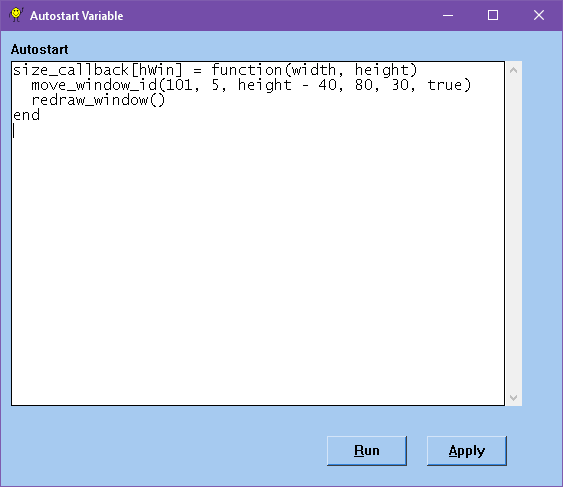
then click Run to run the script immediately which will set up the callback, then Apply to close the window.
Now if you resize the window, it will move the label to the bottom no matter what the size you have is.
There is a guilua file with a list of all globals to look through so you can discover what things have been defined you can manipulate.
Another function to take advantage of is get_text which will get the text from a control, and msgbox which will make an alert box.
So if you add this code to the script in the button, something will happen:
msgbox(get_text(103), "Value")
It will display what is in the input box after the button is clicked.
So how does it work?
guilua itself brings up an empty windows box and then loads the code that is in init.lua in the same folder as guilua.exe.
That file will set up the call back that guilua will run and the whole environment there.
The function is runs first is called dialog_callback and it has the window handle and the windows
parameters as used by win32. That has the event loop and everything else. The menu bar and such are set up before the dialog callback gets created.
Many of the functions it is calling are Win32 functions that are wrapped up for lua to use.
I'd say there is quite a lot of flexibility in these few small files, to talk to win32 from lua with this simple shell. The only required files are guilua.exe, init.lua and lua53.dll. All of this is under a meg and a half, and you can make your own programming using drag and drop.
The files that it saves are the tables under the Saved table, which has all the control ids and scripts and things, plus anything your code puts in there.
So if you had some code that put Saved.orange = 4 when you loaded it again Saved.orange would be 4 again.
Hopefully this makes it more clear what you can do with guilua and how to do it.
Feel free to experiment and take a look at the init.lua and globals reference.guilua files to see what all is out there.
There are a few more things in the menus I didn't talk about this time yet, but it should be easy enough to discover what they do.
One of those is the Stack menu. You can use that to create multiple cards in one stack. You can do that by Stack then New Card to create a second card. If you do that, all the controls disappear, but actually they are still there, you just changed cards. You can go to the previous and next cards to change which card you are on in the stack. And each card can have its own script and background id.
What the background id does, is make that card number the background, and all the controls that are in the background appear in the current card too. That makes that card a template. You can use this to make a form with multiple entries. When you make a new card, the new card will have the same background id as the one you were on before.
You can use Stack then Find Text to find text even if it's not on the current card. So you can quickly make a form you can search through, without even having to add any more lua code to it.
The last menu is the Rich Edit menu, and that's used if you make a Rich Edit control. That lets you set fonts and do formatting on a selection on the Rich Edit control. If you aren't using a Rich Edit control, this menu won't do anything.
Have fun with guilua!